
Making Battlemaps with Dungeon Painter Studio for Dungeons & Dragons

So you’ve decided to be a Dungeon Master for your Dungeons & Dragons group. Great choice! One thing that might seem tricky is making battlemaps to show players where the adventure happens.
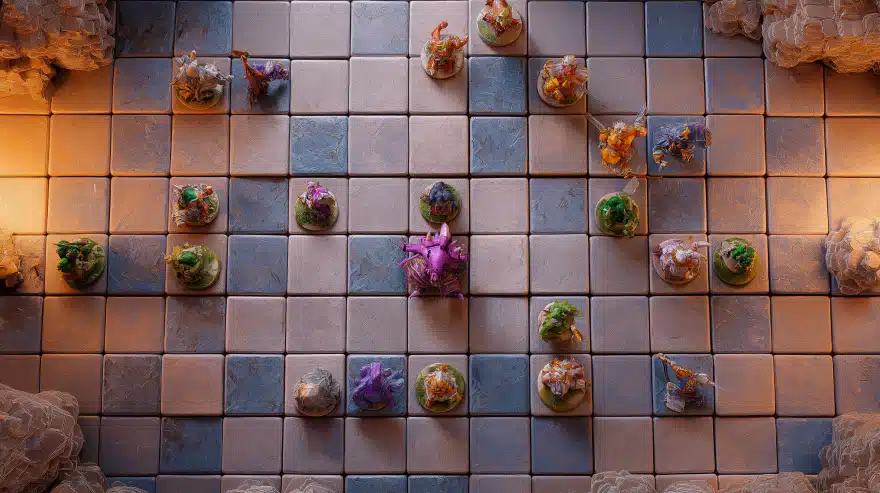
Battlemaps are like a bird’s-eye view of the battlefield. They have squares, usually five feet each in D&D 5th Edition, to show movement and positioning. Having a battlemap makes combat easier and more fun because everyone knows exactly who is standing where.
Back in the day, I used to draw maps on paper with pencils and rulers. It was slow and messy, and my players often couldn’t tell what was what.
Then I found Dungeon Painter Studio (DPS), and it completely changed my game prep. It’s a computer program that lets you quickly build maps by placing floors, walls, and objects like furniture or chests on a grid. You don’t have to be an artist at all.
You can buy Dungeon Painter Studio for around $15 on Steam, and there’s also a free version to try. Most people say it’s easy to learn and saves tons of time. It works great for online play on Roll20 or Fantasy Grounds, and you can print maps too.
So you get more control over your adventure without the headaches of hand-drawing everything.
Check it out yourself here:
Dungeon Painter Studio on Steam
Getting to Know Dungeon Painter Studio : The Basics in Simple Language
When you open Dungeon Painter Studio, you’ll see a grid like a giant chessboard, but each square means five feet in your game world. That’s a handy size because D&D’s rules for movement and attacks are based on these five-foot squares (D&D Basic Rules).
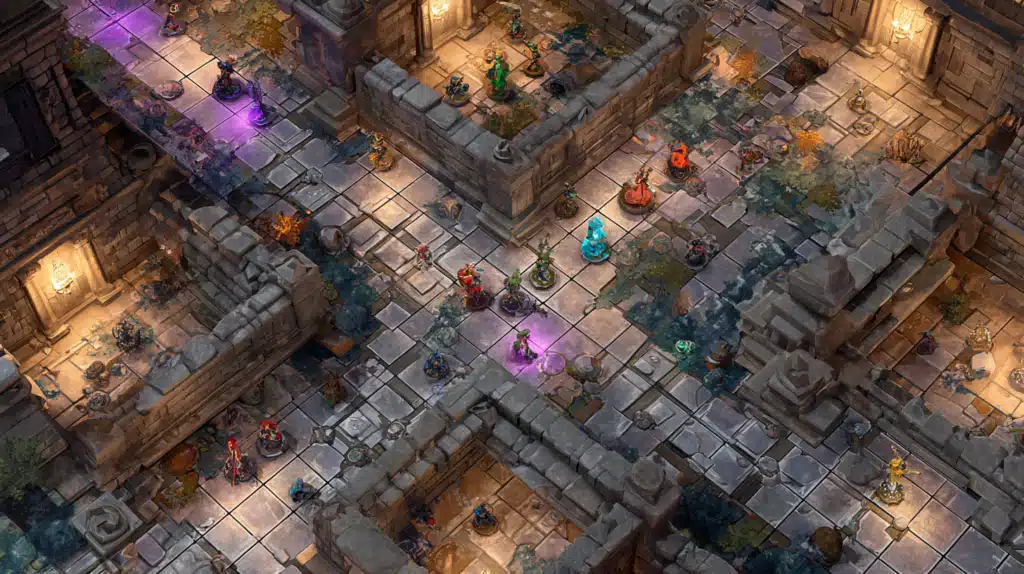
On the left side, you have tools to add floors, draw walls, and place objects. In the center is your workspace where you make the map, and on the right are layers. Layers help you organize parts of your map so you can hide or show things easily. For example, you might keep all your walls separate from furniture.
Tools are simple. To make a floor, click the floor tool and drag to fill an area. Want to make walls? Click wall points on the grid and the program connects them.
Placing barrels or tables is just a matter of choosing and clicking where you want them.
From my experience and from many users’ reviews online, the program isn’t scary. You don’t have to know fancy drawing or tech tricks. The free version gives you plenty to get started, and the paid version unlocks many more decorative assets.
If you want to dive deeper into the official program details and user tips, check out:
Dungeon Painter Studio Legacy Tutorial and Dungeonsolvers DPS Guide
Making Your First Map: Your First Steps and What I Learned
Starting a new map is like setting up your play area. Make the size manageable something like 20 by 20 squares is perfect for your first few tries.
Choose a floor type stone for dungeons or grass for fields and drag it out on your grid. It’s like coloring square by square but faster and cleaner.
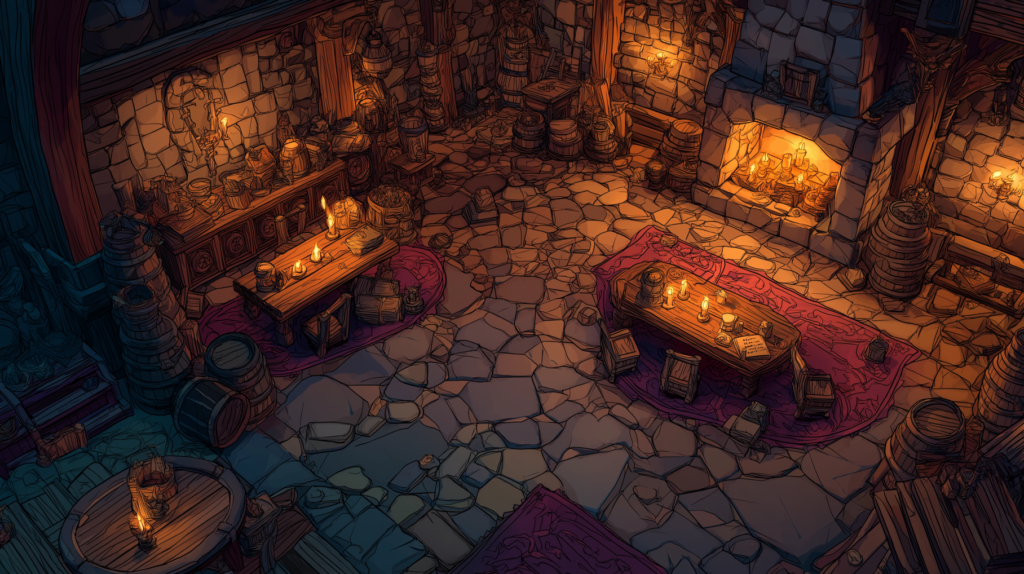
Adding walls is next. Click along the grid corners to form rooms or corridors. I found that making a simple square room first helped me get comfortable before trying more complicated layouts. You can easily move or change walls later, so no stress.
One small trick I learned is to think about the story behind the walls. A sturdy stone wall makes sense in a dungeon. A wooden fence fits a farmstead. This makes the map feel more alive. Don’t be afraid to experiment with doors or windows either.
If you want to watch a walkthrough of these steps, here’s a helpful video with lots of tips:
DPS Step-by-Step Tutorial
Dressing Your Map with Objects : The Fun Stuff That Makes Rooms Real
A room with just floors and walls feels empty, right? Objects like tables, chairs, barrels, or chests bring your map to life and give players something to interact with.
Placing objects is like playing with digital stickers: just select what you want and click where it belongs. Objects can be rotated or resized to fit well. For example, a big table might block a hallway and create a choke point for the battle.
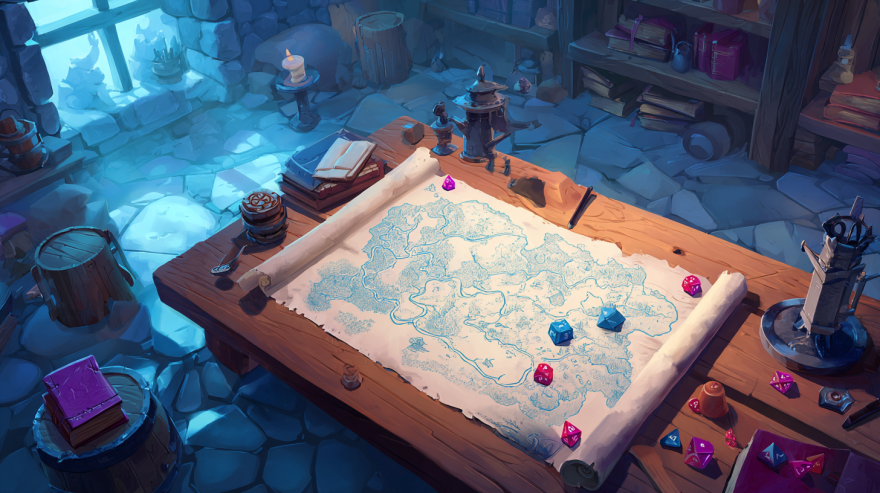
One thing I learned is to avoid crowding your map with too many objects. Give your players space to move and fight, or things can get confusing. Remember, battles need room for players to strategize.
You can also use layers to put objects on one layer and hide or show them whenever it fits the story, like revealing a hidden treasure chest late in the game.
Layers : Your Organizer and Secret Keeper
Think of layers like folders on your computer for your maps. Floors sit in the bottom folder, walls above them, then objects on top, maybe tokens or monsters on another. This helps you fix or change any part without messing up the whole map.
I use layers to hide secret doors, trap triggers, or monsters behind a curtain. When it’s time, I just click a button to reveal them to my players. It’s like magic.
Keeping organized with layers saved me so many headaches when my players wanted to backtrack or explore hidden areas.
Exporting Your Map to Play with Friends : Easy and Ready
Once your map looks great, you probably want to use it in real games. Dungeon Painter Studio lets you export your maps as PNG images, perfect for online game platforms like Roll20 or Fantasy Grounds, or as PDFs if you want to print.
The program knows the size squares should be so you don’t need to do any confusing math or resizing. Just upload your map and play.
If your map is large, the file might be big, but you can use free online tools to shrink the size without losing the sharpness. I’ve done that a few times myself. It’s easy.
What Players and Other Dungeon Masters Say : Real Talk and Tips
Players and DMs on forums and reviews agree Dungeon Painter Studio is a great middle ground between simple sketching and expensive professional art.
While it may feel a little strange at first, once you understand the tools, you can produce great maps quickly. It’s especially helpful if you run games regularly and need to prep efficiently.

Tips from the community and from my own experience:
- Start simple to learn the program
- Use layer groups to stay organized
- Don’t clutter your maps; keep space open
- Think about the story behind every room and object
- Try mods from the Steam Workshop to add more assets
Comparison Table: How Dungeon Painter Studio Stacks Up
| Map Making Method | Time Needed | Cost | Skill Required | Quality | Flexibility |
|---|---|---|---|---|---|
| Dungeon Painter Studio | 10-15 minutes | $15 or Free | Easy | Good | High |
| Hand Drawing | 30-60 minutes+ | Paper and Tools | Artistic skill | Variable | Low |
| Inkarnate (Online Tool) | 15-30 minutes | Subscription | Moderate | Good | Moderate |
| Physical Dungeon Tiles | Varies | $30-$60+ | Easy | Good | Low |
| Commissioning an Artist | Days to weeks | $50-$500+ | N/A | Excellent | Very High |
TL;DR A Quick Rundown for Busy DMs
Dungeon Painter Studio is an easy and affordable tool to make clear battlemaps that fit D&D’s rules right out of the box. You don’t have to be good at drawing, and the program helps you build floors, walls, objects, and more.
You can export maps for online platforms or print them. Start with the free version, upgrade if needed, and enjoy faster and better prep for your games.
Conclusion: Why I Love Dungeon Painter Studio and You Will Too
For me, Dungeon Painter Studio took away the dreaded chore of map-making. It’s now part of my game prep fun, not a stress. Players get maps they understand, fights flow smoother, and I have more time to plan stories.
If you’re just starting or want to save time, give it a try. Play with the tools, build some rooms, and watch your world come alive. Your players will thank you.
Ready to start? Here’s the official link again:
Dungeon Painter Studio on Steam
Frequently Asked Questions
Do I need to be good at drawing?
No! You just place ready-made pieces on the map. Anyone can do it.
Can I use the free version?
Yes, it’s quite powerful. Paid adds more content and features.
Will the maps work in Roll20 or Fantasy Grounds?
Absolutely. The maps are scaled perfectly for these platforms.
Can I add my own pictures or objects?
You can, but the built-in and Workshop assets are usually enough.
Attribution and Licensing
This guide is based on official D&D rules from D&D Beyond, user reviews, community feedback, and personal experience with Dungeon Painter Studio. It aims to make map-making approachable and fun for new dungeon masters.
This article at first sold me on DPS, and I was about to get it, but then I went to the DPS forum and there’s a lot of salty folks who are pretty upset that the guy isn’t updating much anymore (apparently). On there they recommended the new Dundeondraft, which looks similar but maybe better?
I don’t know since I’ve never used any of these programs… Just wanting to see if you had an opinion on DPS vs Dungeondraft
I still use DPS and hadn’t used Dungeondraft before. I just watched the trailer for it and am definitely going to give that a try because my god it looks fantastic.